When we first sat down to review this tiny powerhouse in our original XTEINK X4 Review, we called it a “rebellious slab of E-ink.” Since our initial coverage here on Creative Game Life, a passionate global community of developers and Everyday Carry (EDC) enthusiasts has taken this $69 micro-reader and pushed it far beyond its stock limitations. If you felt limited by the factory operating system, or if you’ve been struggling with the ergonomics of a 74-gram, 4.3-inch screen, this follow-up guide is for you.
We have spent the last few weeks testing community-driven custom firmware and experimenting with physical, real-world “hacks” that completely redefine how it feels to read on the X4. Here is everything we have learned.
The Software Revolution: CrossPoint and CrossInk Firmware
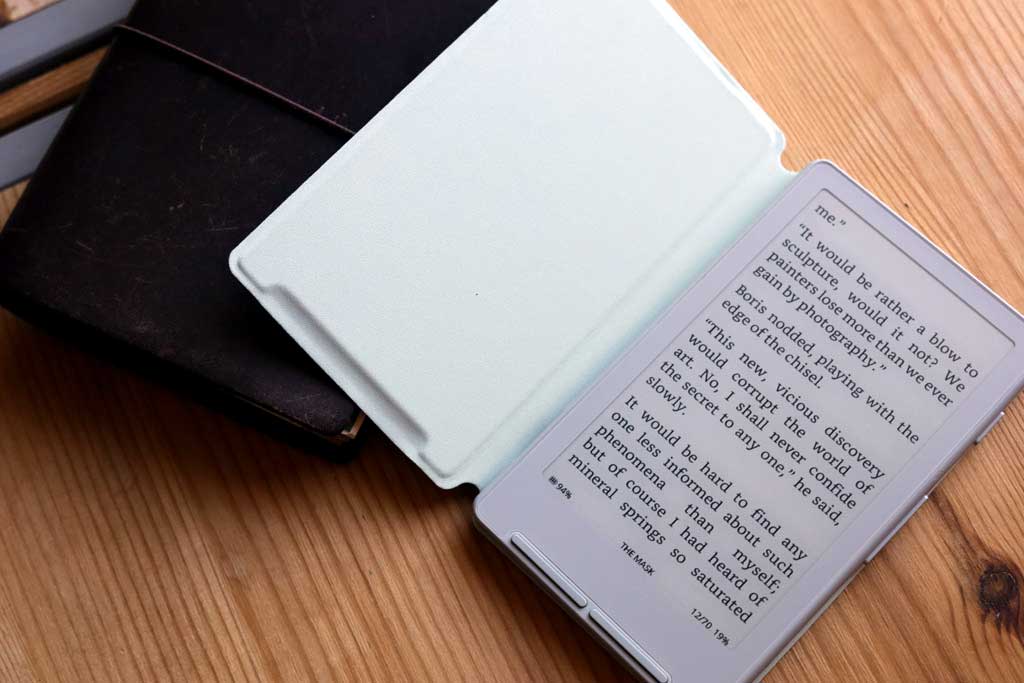
While XTEINK has issued official updates to clean up their barebones launch software, the real magic is happening in the open-source community. The original factory software, while functional, often struggled with complex formatting and heavy files. Enter CrossPoint and its incredibly popular new community fork, CrossInk.
What is CrossPoint?
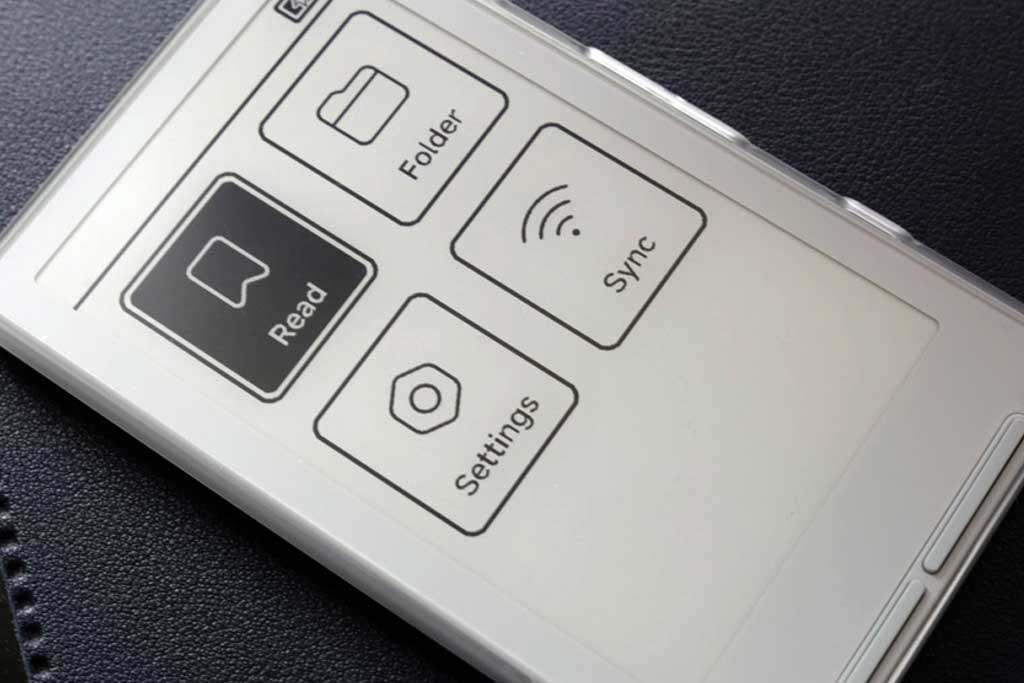
While CrossInk gets plenty of buzz for its bleeding-edge experimental features, CrossPoint remains the undisputed gold standard of the X4 community—and it is the exact UI you see featured in our review photos. Engineered as the foundational open-source operating system for the X4’s ultra-low-power chip, vanilla CrossPoint is beloved for its solid stability, snappy menu navigation, and a beautifully minimalist layout. It strips away the clunky factory aesthetics in favor of a clean, hyper-optimized reading environment. If you want a dependable daily driver that maximizes battery life and just works without the technical quirks of newer, experimental forks, CrossPoint is the definitive choice for most users.
What is CrossInk?
Maintained and updated by indie developers on GitHub, CrossInk (built on the foundational open-source CrossPoint architecture) turns the X4 from a basic text screen into a deeply refined e-reading powerhouse.
Key Features of CrossInk Custom Firmware:
-
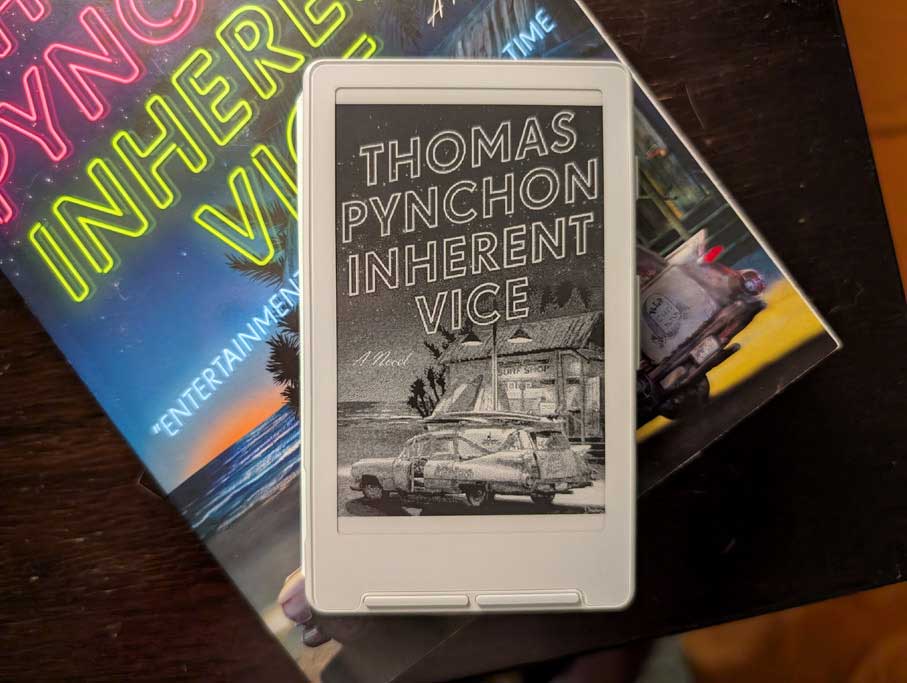
True EPUB 2/3 and Image Support: Renders book covers, inline images, and complex CSS styling directly on the ultra-low-power ESP32-C3 chip.
-
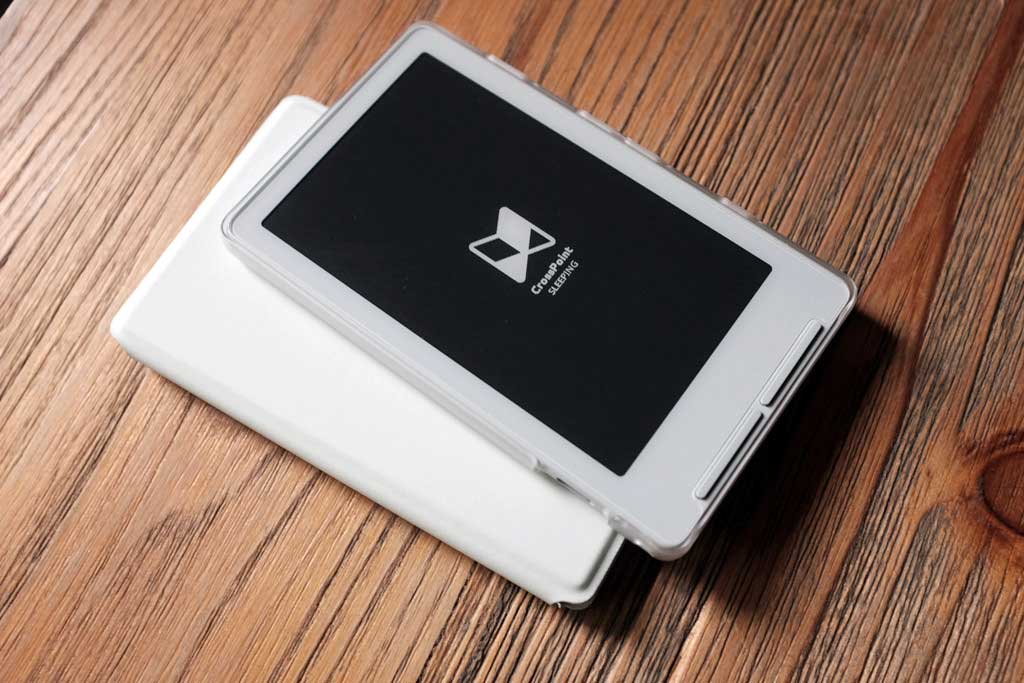
Advanced Sleep Screen Modes: Set your sleep screen to show your current book cover, reading statistics, a custom image, or a completely transparent overlay of the exact page you are currently reading.
-
Sunlight Fade Fix: Built-in “Sunlight Modes” optimize the screen refresh voltage to combat the UV-fading quirk outlined in our original review.
-
Bionic Reading & Guide Dots: Features algorithmic text adjustments that highlight the beginnings of words, significantly increasing reading speed and cognitive focus on a small screen.
Step-by-Step Guide: How to Flash Custom Firmware on the XTEINK X4
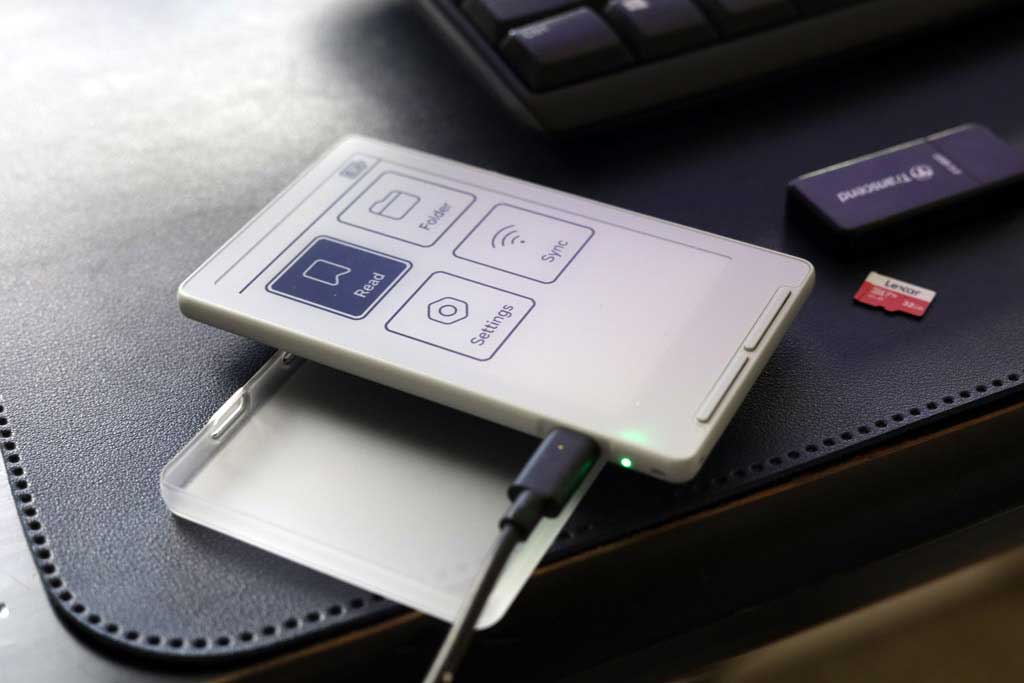
Thanks to the development community, you no longer need to know how to use command-line terminal scripts to upgrade your software. You can flash your reader directly from your desktop web browser
Prerequisites & Checking Your USB Lock Status
Crucial Warning: Some XTEINK X4 units purchased via third-party sellers like AliExpress ship with the USB flashing interface locked from the factory. Units purchased directly from the official XTEINK store are completely unlocked. If your unit is locked, you must run an online unlock utility before proceeding, or you risk bricking the hardware.
-
The Cable: Grab a high-quality USB-C data cable. (Note: The X4 does not ship with a cable, and many cheap phone cables only carry power, not data).
-
The Browser: Open a Chromium-based browser (Google Chrome, Microsoft Edge, or Opera) on your computer. The Web Serial APIs required for this process do not work on Safari or Firefox.
-
Wake the Device: Ensure your X4 is powered on and fully awake.
The Flashing Protocol
-
Check the Lock & Connect: Head over to the CrossPoint Web Installer and plug in your device. If your device doesn’t show up in the browser’s serial picker, or if you have an AliExpress unit, navigate to the CrossPoint Unlock Tool first to safely clear the factory restriction.
-
Backup Your Stock OS (Do Not Skip!): Under the full flash controls on the interface, click Save full flash.This will take 2 to 5 minutes to download a local file called
flash.bin. Keep this file safe; it is your literal safety net if you ever want to revert your device to factory stock. -
Flash CrossPoint or CrossInk: To install vanilla CrossPoint, select the latest release build directly from the site’s menu. If you want to use the CrossInk fork, download the
firmware.binfile from the community’s CrossInk GitHub release page, click Custom .bin on the installer web page, and upload it. Click Flash Firmware. -
The Hard Reboot: Once the browser indicates the write process is 100% complete, unplug the USB cable. Locate the tiny physical Reset button on the bottom-right edge of the device and press it, then immediately press and hold the main Power button.
Welcome to a completely transformed e-reader.
Injecting Custom Fonts
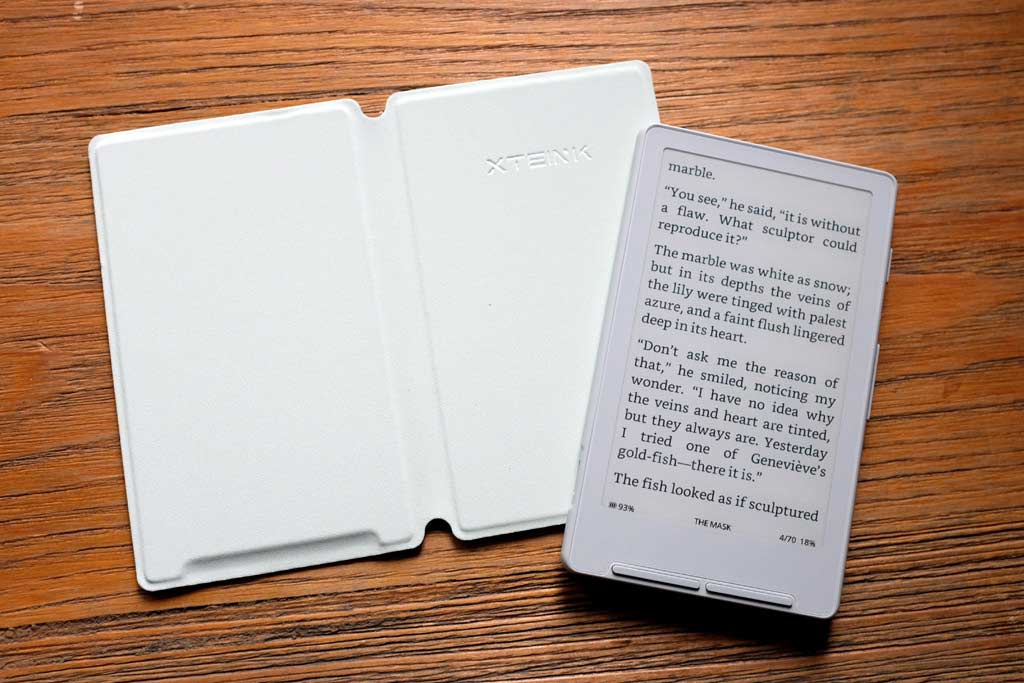
Once your new firmware is running, you don’t need to re-flash your device to change styles. You can head to the online CrossPoint Font Builder, upload your favorite standard desktop fonts (like Amazon’s Bookerly or Bitter), and convert them into .cpfont files. Drop these files onto your microSD card inside a folder named /fonts/, and you can activate them instantly from the main menu’s Reader Options.

Next-Level Ergonomics: Two Reading “Hacks”
While custom firmware fixes the digital experience, the physical reality of holding a 5.9mm thin, credit-card-sized device for hours can cause some hand cramping. To fix this, we developed two physical modifications using the extra MagSafe-compatible magnetic stick-on rings that come included in the XTEINK box.

Mod 1: The Leather-Bound Traveler’s Notebook Passport Case
If you love the analog tactile feel of real paper, this hack is a game-changer. By taking a standard, passport-sized Traveler’s Notebook leather cover and opening up an internal plastic or cardstock “craft folder” insert, you can stick one of the X4’s magnetic rings directly onto the folder.

When you drop the X4 into the notebook, it snaps firmly and securely against the folder insert. This simple mod completely transforms the reading experience. It adds the luxurious, traditional feel of a leather-bound book, gives your fingers an intuitive place to grip the edges of the leather cover, and naturally conceals the device when closed—making it a stealthy EDC reading wallet.

Mod 2: The Hands-Free Desktop Standing Board
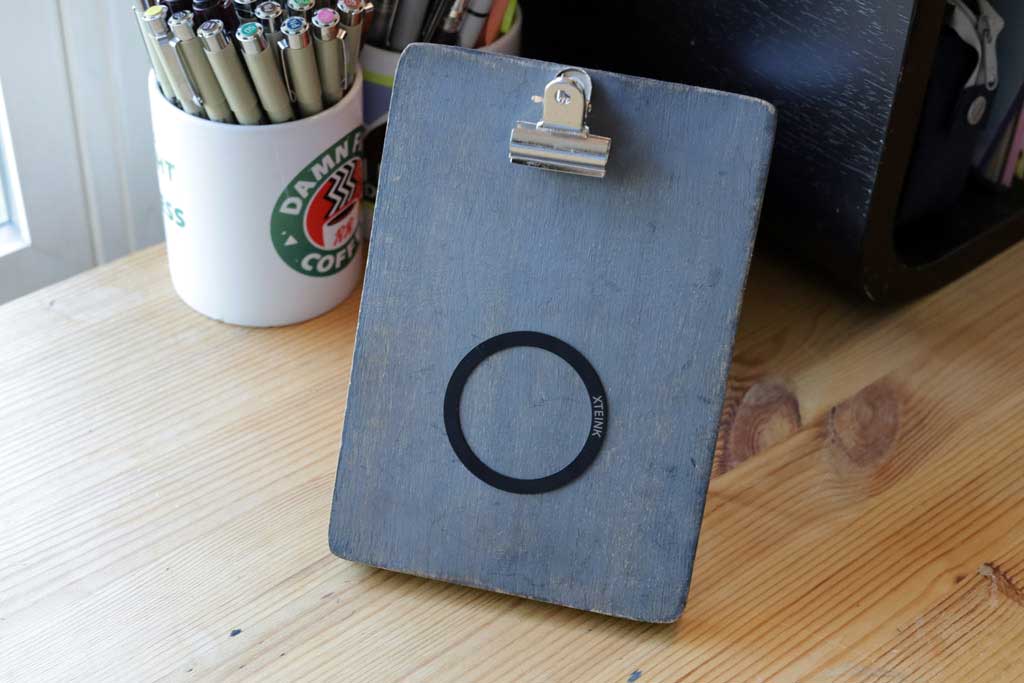
Don’t let the remaining magnetic ring sit around in the box. Take that second ring and adhere it directly to a desktop standing board—the heavy plastic or wooden small stands typically used on office desks to hold sticky notes, task lists, or recipes.
This creates a convenient, hands-free reading terminal. When you sit down at your desk with a cup of coffee or while typing on your main computer, you can effortlessly snap the X4 onto the stand. Thanks to the custom firmware’s font-scaling options, you can bump up the text size and read hands-free while your hands stay free to work, type, or eat breakfast.
XTEINK X4 Customization FAQ
Can I revert my X4 back to the factory firmware?
Yes. If you saved your original backup during the flashing process, you can use the same web installer tool to upload your local flash.bin file. Alternatively, you can always flash the latest official default English firmware image directly from the Xteink Flash Tools site to return the device to factory defaults.
Do CrossInk or CrossPoint support reading in the dark?
No. The custom firmware optimizes screen refresh rates and layout capabilities, but it cannot change the physical hardware. The XTEINK X4 still lacks an internal frontlight layer to preserve its paper-thin chassis. You will still need an external clip-on light like a Glokusent or the official magnetic LED bar for nighttime reading.
Why won’t my device connect to the web flasher?
This is almost always caused by one of three things: using a charging-only USB cable that lacks data lines, attempting to flash using an unsupported web browser like Safari or Firefox, or trying to connect while the X4 screen has timed out and gone to sleep. Ensure the device screen is fully active before clicking connect.
How do I fix text memory errors when loading custom fonts?
Because the ESP32-C3 chip operates with a tiny footprint of usable RAM (~380KB), downloading multiple custom fonts over Wi-Fi simultaneously can temporarily choke the device’s cache. If your device behaves sluggishly after adding fonts, simply hit the hardware reset button to clear the active RAM. Once the fonts cache onto the microSD card, the system will run smoothly.